Introduction
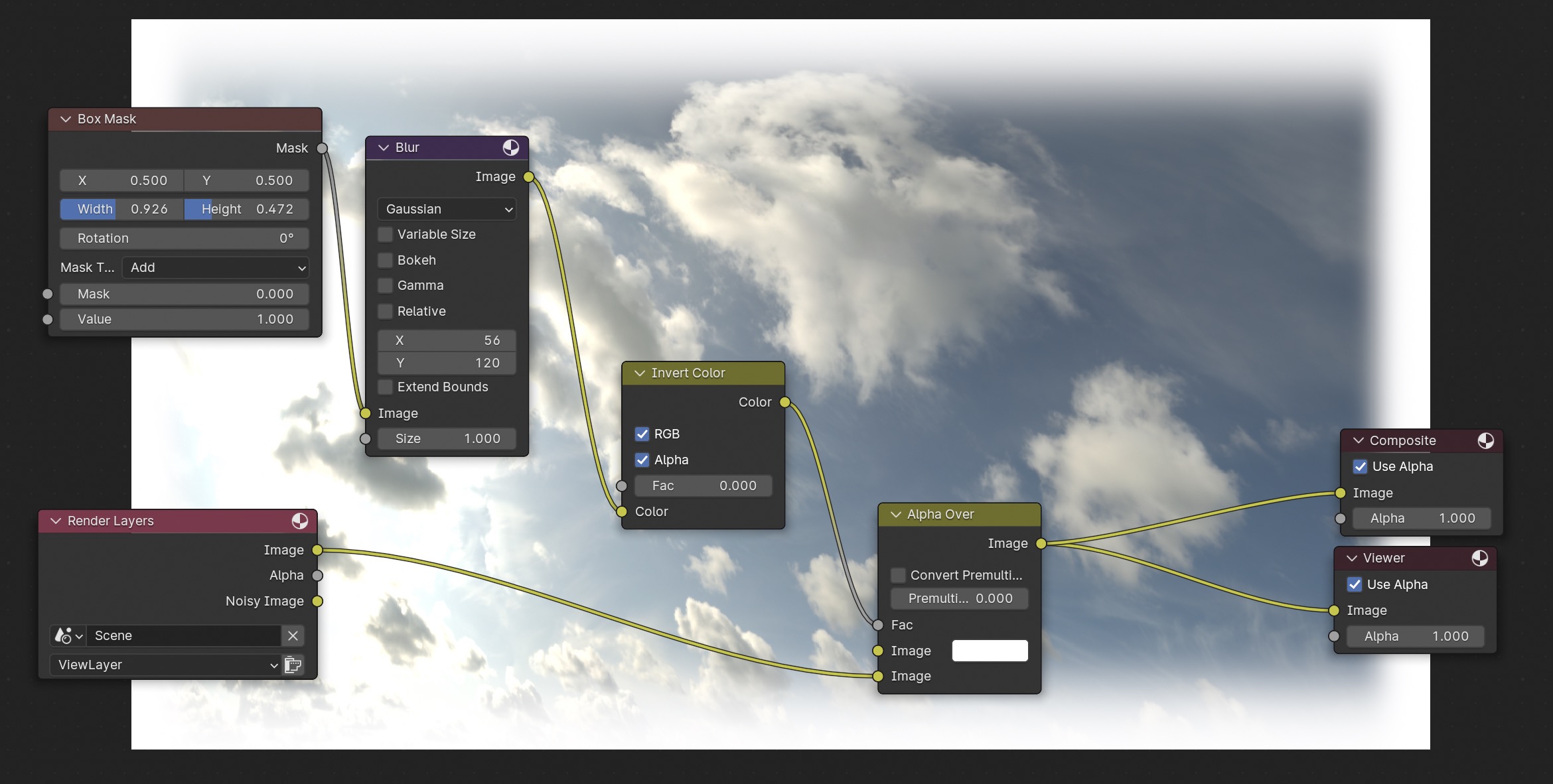
How to add a white border around a rendered frame in Blender's Compositor
Blender Version
4.1.1
Prerequisites
A scene that has at least one frame rendered
Steps
In Blender's menu bar, open the Compositing tab
Check the box 'Use Nodes'
Click the box that says 'Backdrop.' It should turn blue.
Shift+A
Input -> Scene -> Render Layer
Mask -> Box Mask
Filter -> Blur -> Blur
Color -> Invert Color
Color -> Mix -> Alpha Over
Output -> Composite
Output -> Viewer
Box Mask
- Mask output to Blur Image input
-- Adjust Width and Height to desired amount
Blur
- Image output to Invert Color color input
- Adjust X and Y to desired blur amount
Invert Color
- Color output to Alpha Over Factor input
- Check boxes RGB and Alpha
Render Layers
- Image output to Alpha Over lower image input
- Make sure the scene is selected
Alpha Over
- Image output to Composite Image input
- Image output to Viewer Image input
previous page
|